

Documentation Index
Fetch the complete documentation index at: https://playerzero.ai/docs/llms.txt
Use this file to discover all available pages before exploring further.
What Is the Chrome Extension?
The PlayerZero Chrome Extension puts the AI Player right inside your browser. Instead of switching tabs to start an investigation, you can capture the page you’re looking at, ask a question, or kick off a workflow stage — all from a lightweight side panel that lives alongside the page you’re working on. It’s designed for anyone who triages issues, reviews customer-facing pages, or investigates bugs and wants to get AI-powered answers without breaking their flow.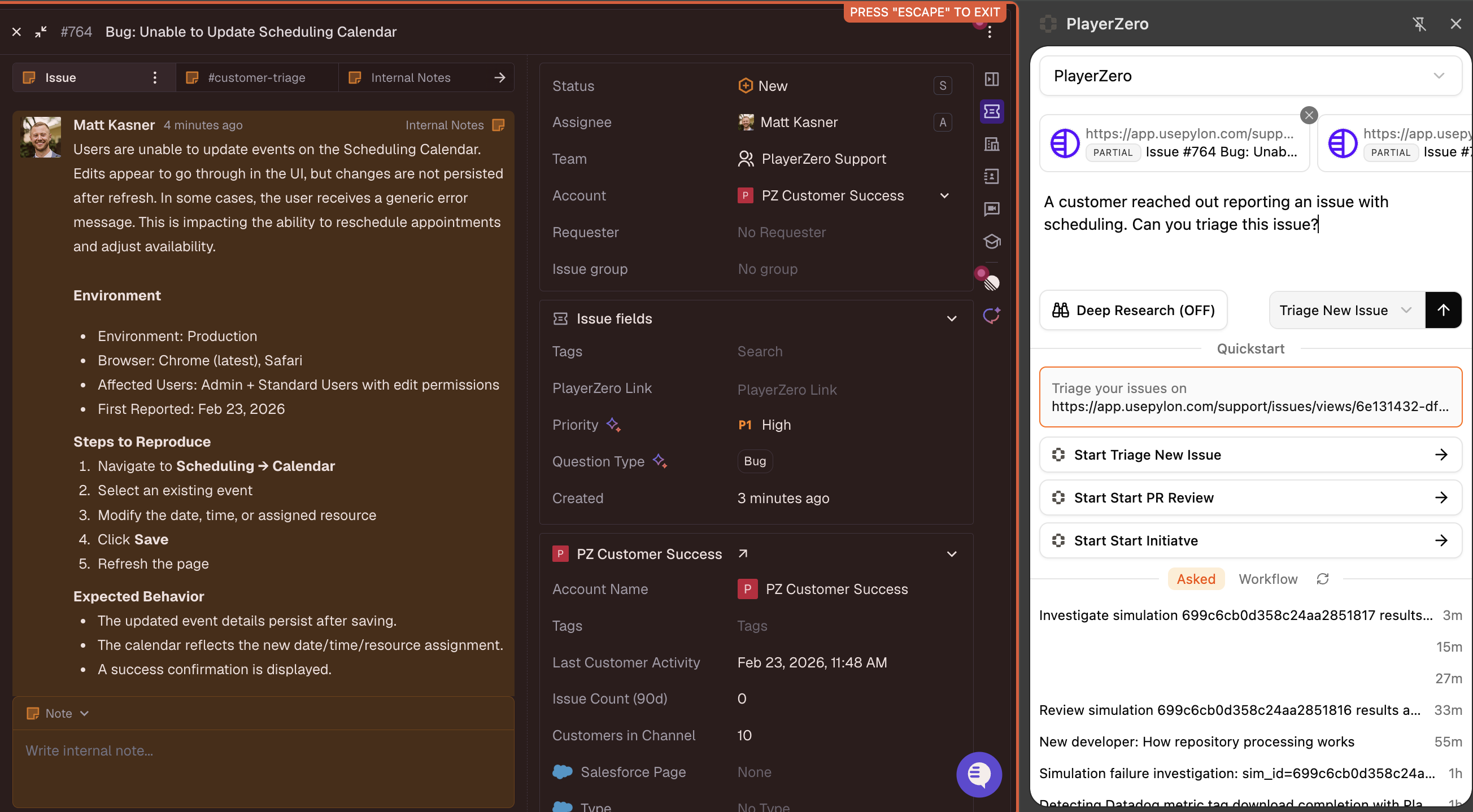
Capturing Page Context
The extension includes a floating toolbar that appears on any webpage when the side panel is open. It lets you capture page content to give the AI Player rich context about what you’re looking at.Full Page Capture
Full Page Capture
- What it does: Captures the entire webpage and sends it to the AI Player as context.
- How to use: Click the full page icon (page with a plus) on the floating toolbar.
- Best for: Giving the AI a complete picture of the page — layout, content, error messages, and all.
Partial Page Capture
Partial Page Capture
- What it does: Lets you select a specific element on the page to capture, rather than the whole thing.
- How to use: Click the element selector icon (dashed box with cursor) on the toolbar. An orange border appears around the page and your cursor changes to a selector. Hover over the element you want and click to select it.
- Best for: Focusing the AI on a specific component, error message, form, or section of the page.
- To exit: Press Escape at any time to leave selection mode.
Multiple Contexts
Multiple Contexts
- You can capture multiple elements or pages before submitting your question.
- Each captured context appears as a card in the side panel showing the page URL, type, and size. Click the eye icon to preview the captured content, or click the X to remove it.
- All attached contexts are converted to a readable format and included when you start the AI Player.
- There is a cumulative size limit for attached contexts. If your captures exceed the limit, the extension displays a warning on the affected card and automatically trims content when you submit. Remove captures you don’t need to stay within the limit.
Asking the AI Player
Once you’ve optionally captured page context, you can start an AI Player session directly from the side panel.Ask Mode
Ask Mode
- What it does: Submit a free-form question to the AI Player, optionally with page context attached.
- How to use: Type your question in the text box and press Submit. The AI creates a new Player session using your question and any attached page context.
- Best for: Quick investigations, understanding what a page does, or asking why a specific error is showing.
Workflow Mode
Workflow Mode
- What it does: Start a structured workflow stage instead of a free-form question.
- How to use: Select an Entry stage from the dropdown above the text box, then submit. You can optionally include a question or page context.
- Best for: Repeatable processes like bug triage, code review prep, or customer issue investigation.
Quick Start
Quick Start
- What it does: One-click workflow launch that automatically captures the current page as context.
- How to use: Click any Quick Start button below the input area. The extension captures the current page and immediately starts the selected workflow stage.
- Best for: When you want to jump straight into a workflow with the current page as context — no typing required.
Hive Mode
Hive Mode
- What it does: Deploys multiple specialist agents that work in parallel and cross-check each other’s findings for higher-accuracy results.
- How to use: Toggle the Hive switch before submitting your question.
- Best for: Complex investigations, debugging, root cause analysis, and questions that span multiple systems or require multiple perspectives.
- Learn more: Hive Mode
Managing Your Backlog
The side panel includes a backlog view so you can track all your active AI Player sessions without leaving the browser.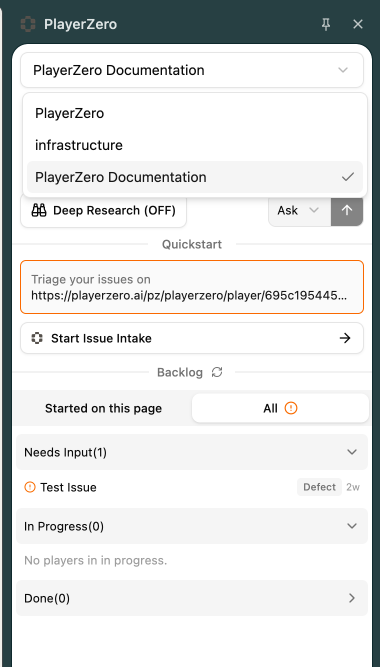
Asked Tab
Asked Tab
- Shows your most recent Ask mode Player sessions.
- Click any item to open the full Player conversation in the PlayerZero web app.
Workflow Tab
Workflow Tab
- Shows Workflow Players grouped into three categories:
- Needs Input — Players waiting for your response or action
- In Progress — Players currently running
- Done — Completed Players
- Use the “Started on this page” filter to see only Players you launched from the current webpage.
Badge Notifications
Badge Notifications
- The extension icon shows an orange badge with the number of Players that need your input.
- The badge updates automatically every 30 seconds so you always know when something needs attention.
- Open the side panel and check the Needs Input section to see what’s waiting for you.